Shortcuts, Button Holds, and Extra Keys
button labels will be referenced from the melee layout
Shortcuts
Melee
shortcut to switch to Melee layout
- Mod X + Start + L
Project M/Project+
shortcut to switch to PM/P+ layout
- Mod X + Start + Left
Smash Ultimate
shortcut to switch to Ultimate layout
- Mod X + Start + Down
FGC
shortcut to switch to FGC layout
- Mod X + Start + Right
FGC Wingman
shortcut to switch to FGC Wingman layout
- Mod Y + Start + Right
Rivals of Aether 2
shortcut to switch to Rivals of Aether 2 layout
- Mod X + Start + B
Rivals of Aether 1
shortcut to switch to Rivals of Aether 1 layout
- Mod Y + Start + B
Smash 64
shortcut to switch to Smash 64 layout
- Mod X + Start + X
Home Key
- MY + Start only works in games/modes that have home (Ultiamte layout Switch backend, FGC layout Switch/Wingman backend, etc)
Select Key
- MX + Start only works in games/modes that have select (ROA1/ROA2 layout Xinput backend etc)
D-Pad
- Mod X + Mod Y + any C button
or
- Mod D + any C button (only works if Mod D is mapped)
Button holds on plug in
Remapper/Config
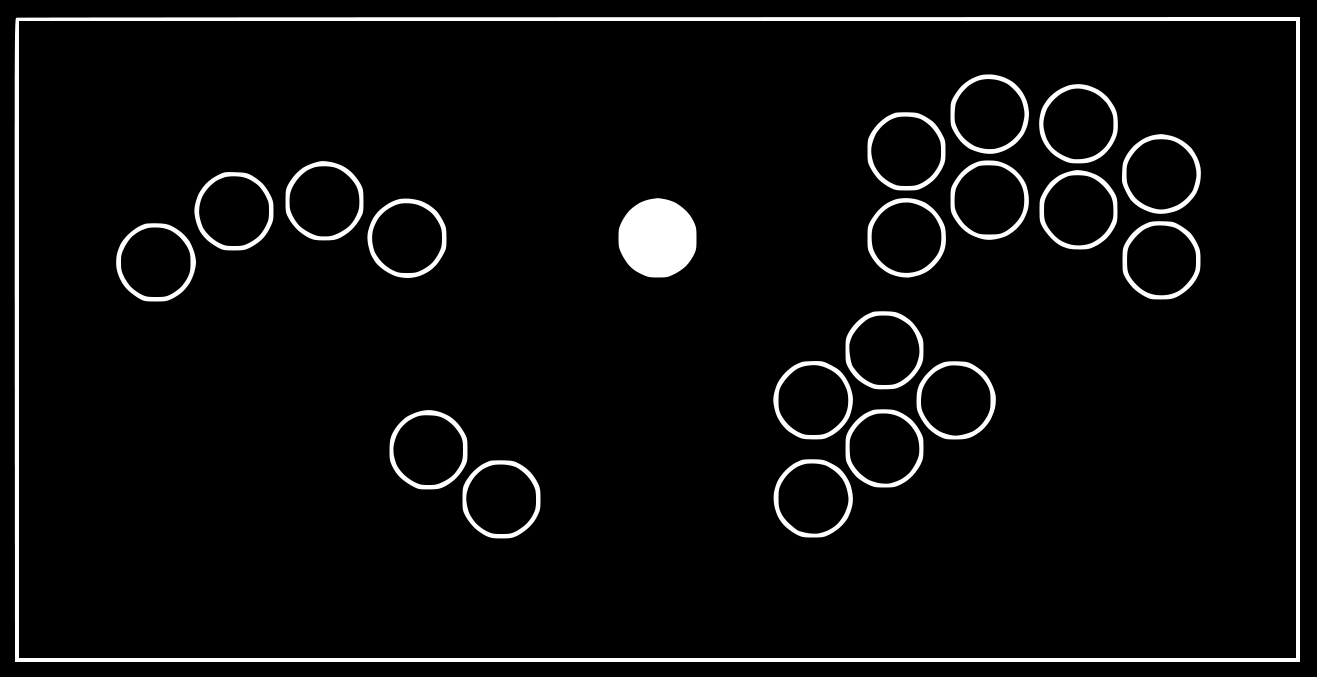 hold Start while plugging in
BOOTSEL
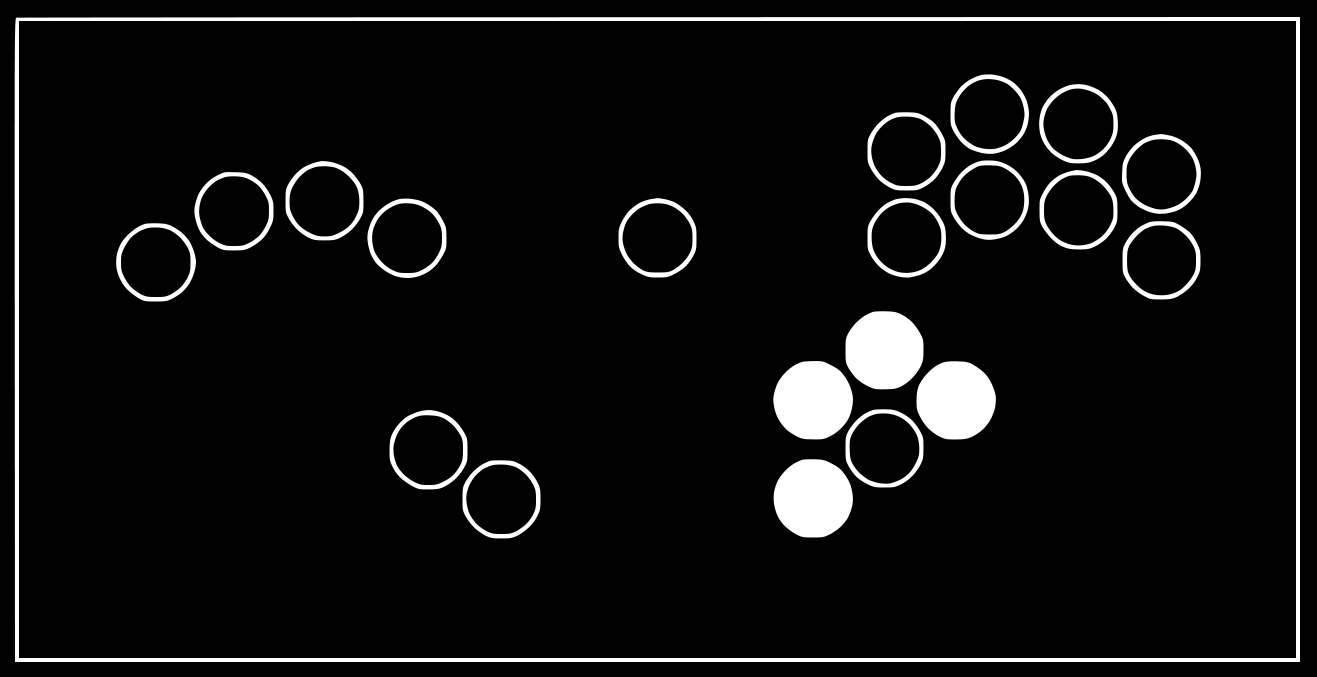 hold C-U + C-R + C-D + C-L while plugging in
(hold MX + MY + Start + Mod D if using a Schism)
Switch
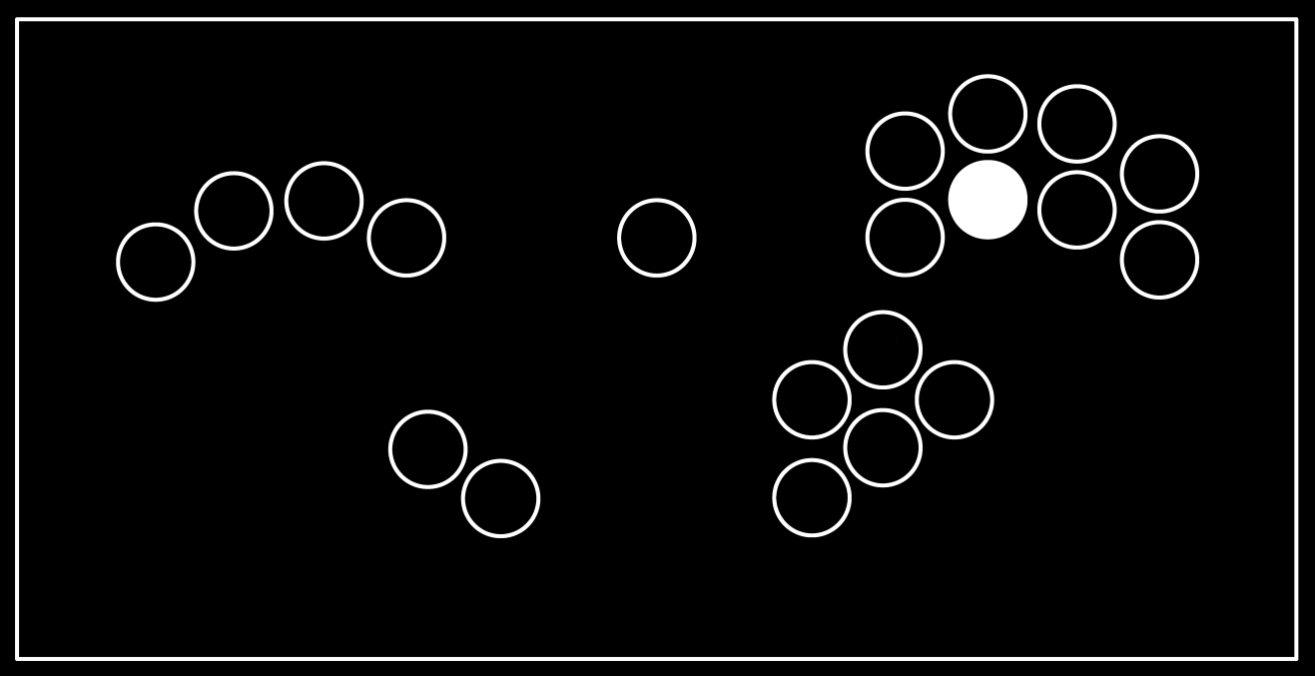 hold X while plugging in
Dinput/keyboard
hold Z while plugging in
Extra buttons/bindings
some controllers sold by Rectangle Corner have extra buttons that aren't represented in Layouts.
Mod X/Mod Y
the main 2 modifiers which allow you to walk, tilt/angle tilts, DI/slight DI, directionally up b, and more
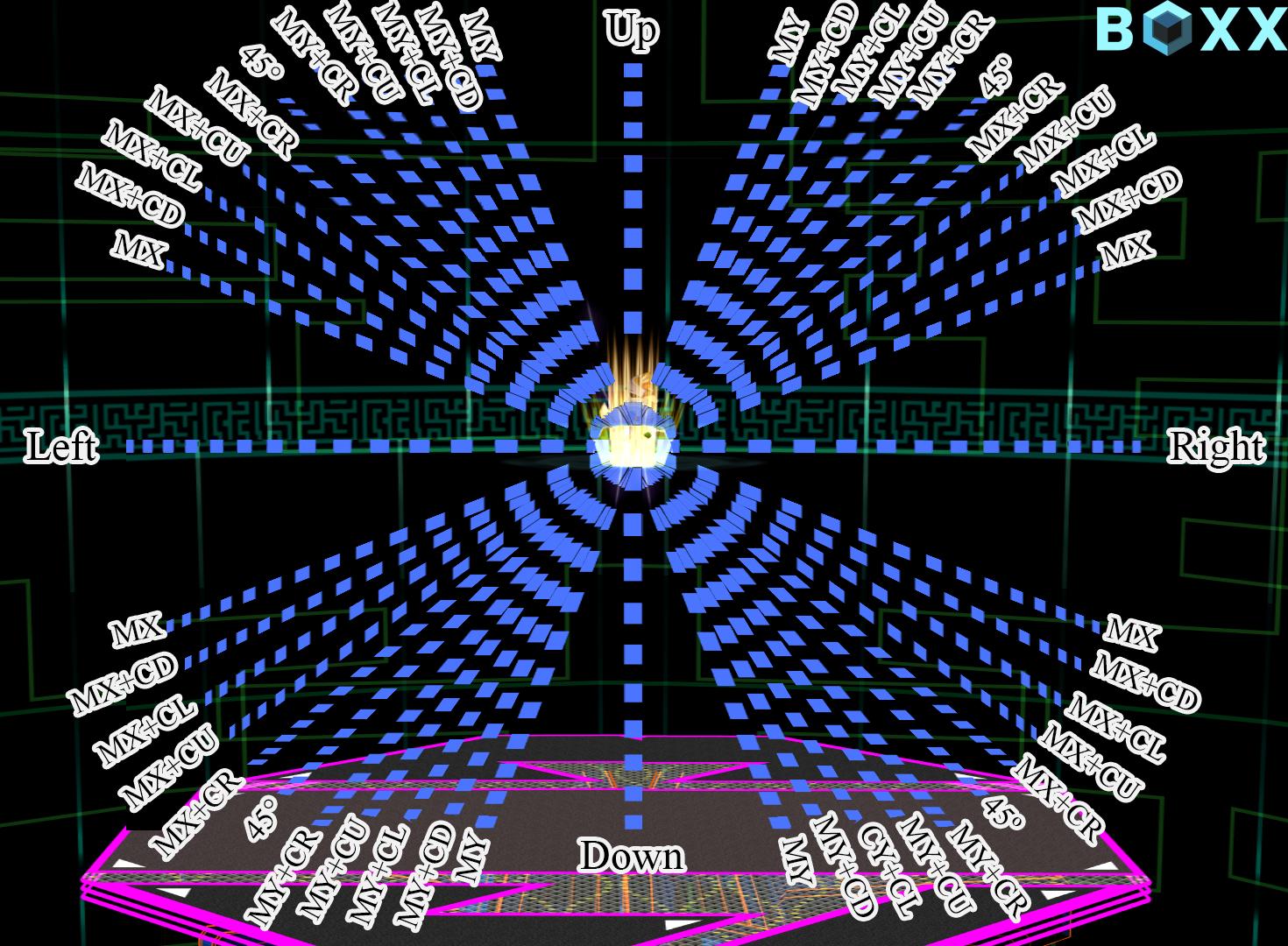
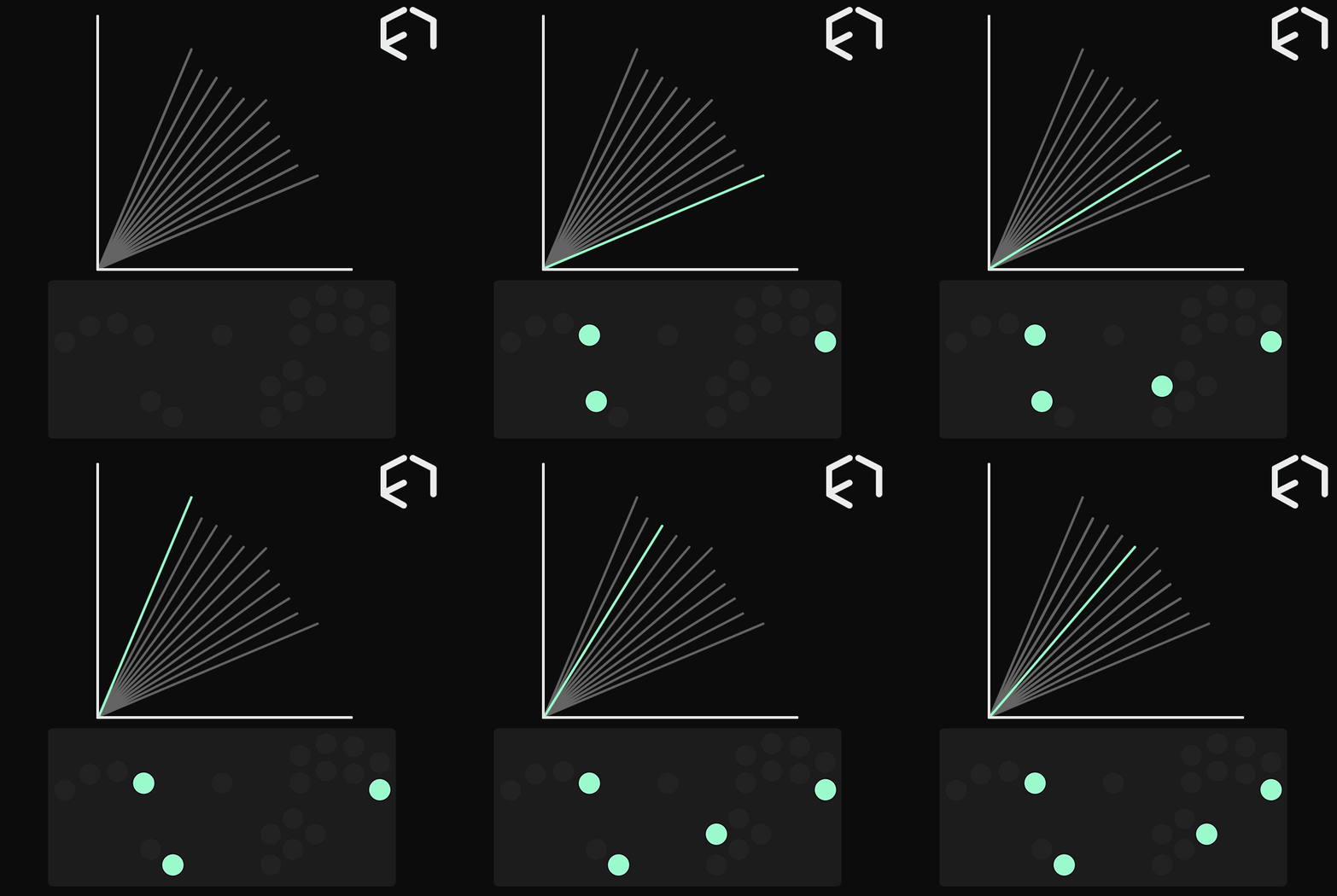
these serve as a visual guide to what angles you can achieve by holding down specific modifier, directional keys, and c stick keys for more details on specific coordinates and the intention of the chosen angles the B0XX melee instruction manual has a detailed explanation
Mod Z
mod z introduces a new coordinate system different from the one that most other rectangles use
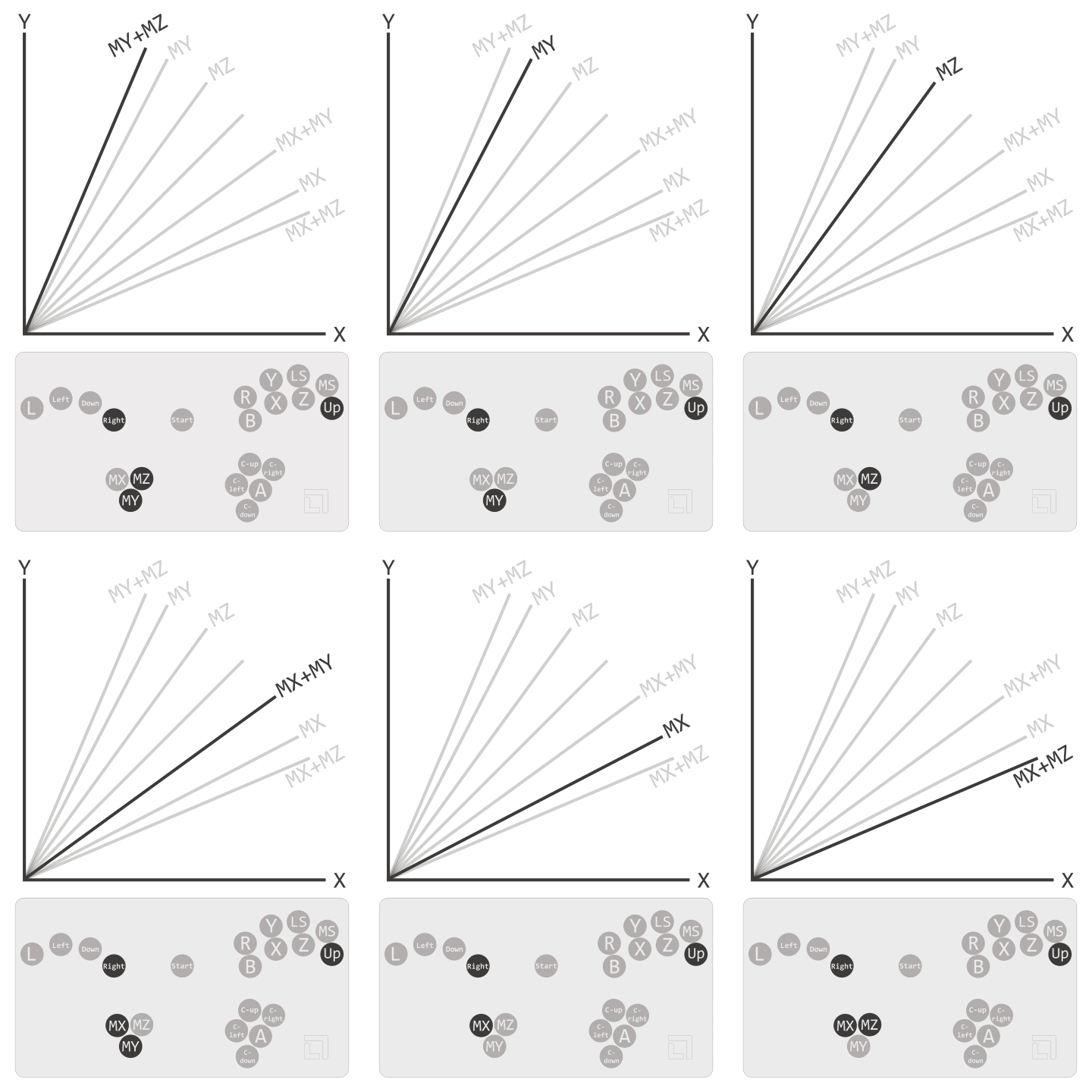
found on the oblong and leme tech one
Mod D
holding mod d and pressing a c stick button will trigger a d-pad input e.g. mod d + c up = d-pad up found on the oblong, leme tech one, bubble box, rana digital, and schism
W Key
secondary up button similar to a WASD layout found on the buble box and rana digital
Left Thumb Cluster
found on the schism
Aux Cluster
found on the bubble box